Google Earth Has a Free Flight Simulator Built Into Your Browser
Google Earth's web app now includes a free, browser-based flight simulator. No downloads or flight training required — just pick a location and fly.
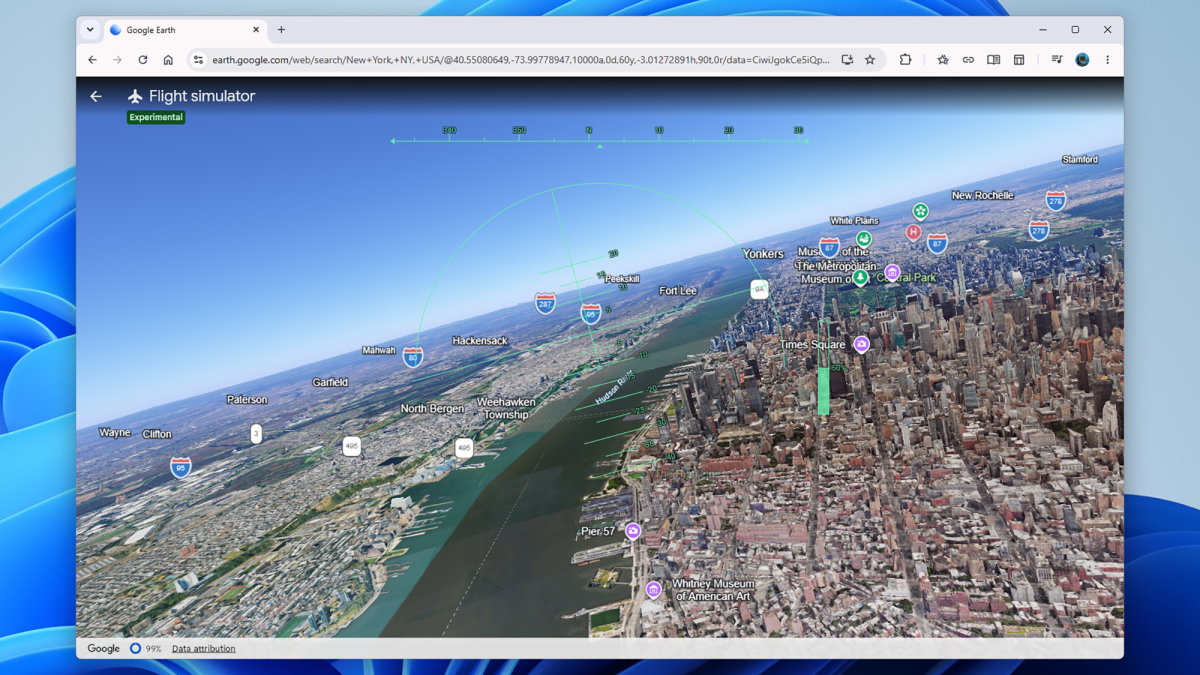
 Flying above New York in Google Earth. Credit: Lifehacker
Key Takeaways
- Google Earth on the web now has a flight simulator mode
- You can launch it in your browser, with no additional apps needed
- A similar feature was previously hidden in the desktop app
Titles like Microsoft Flight Simulator can offer truly gorgeous visual experiences, but there’s an awful lot of simulation involved before you get to the flight. You have to learn a lot about cockpit controls, take-offs and landings, and other simulator-y stuff before you’re allowed to soar into the sky and see the planet from a bird’s eye view.
That’s one of the reasons that the flight simulator mode that just launched in Google Earth on the web is likely to be so popular — in just a couple of clicks, you can be zooming through canyons or across cities, without worrying about what kind of plane you’re in or how your flaps are set.
As Google mentions, this isn’t a completely new experience. It’s actually been ported over from the Google Earth desktop app, but there, it’s rather hidden — more of an Easter egg than a full-blown feature — and offers much more of a flight simulator feel. For example, you need to choose a plane, and figure out how to take off in it, before you get to the eye-popping visuals.
Now that this simplified version is available in the web app for free, and it can be run instantly without any flight training, it’s likely to be much more popular. To test it out yourself, point your browser towards Google Earth on the web, then click Explore Earth. Find somewhere you want to fly through, then choose Tools > Flight simulator.
Google has helpfully provided some instructions for flying around. You can use either the mouse or the keyboard, and there are basically four directions to master: up, down, left, and right. You can also adjust your thrust speed.
Everything works through your web browser, so you’ll need a fairly modern Windows or macOS computer for this to work smoothly — a lot of data needs to be streamed to your system as you fly. “Flying at extreme speeds or over low-bandwidth connections may result in temporary loading delays,” Google says.
Taking to the Skies in Google Earth’s Flight Simulator
The first thing you’ll notice once you’re in the air is that your flight is harder to control than you might think. It’s worth taking a few seconds just to appreciate the view before you do anything, because there’s a fair chance you’re going to get into trouble pretty quickly once you start pressing keys or clicking around.
Use the Up arrow to nudge the nose of the plane down (go lower), the Down arrow to nudge it up (go higher), and the Left arrow and Right arrow to bank in those directions. Small touches are key: if nothing seems to happen immediately, don’t keep pressing the keys, as you’ll very soon get out of control.
 The controls can take some getting used to. Credit: Lifehacker
The mouse controls, where you click and drag on screen, are even harder to use. Within a few seconds of trying to change course, it’s easy to find yourself flying upside down — and not long after that, spinning around uncontrollably, with every correction making things worse.
Don’t worry too much about hitting the ground, though. You’ll just see a “You crashed! Restart” message and immediately take off again, making it easy to jump back in and try a smoother approach the second time around.