Siri AI on Apple Watch: Useful in Places, Frustrating in Many Others
A hands-on test of Siri AI on Apple Watch finds crashes, slow responses, and results that often fall short of Apple's stated examples.
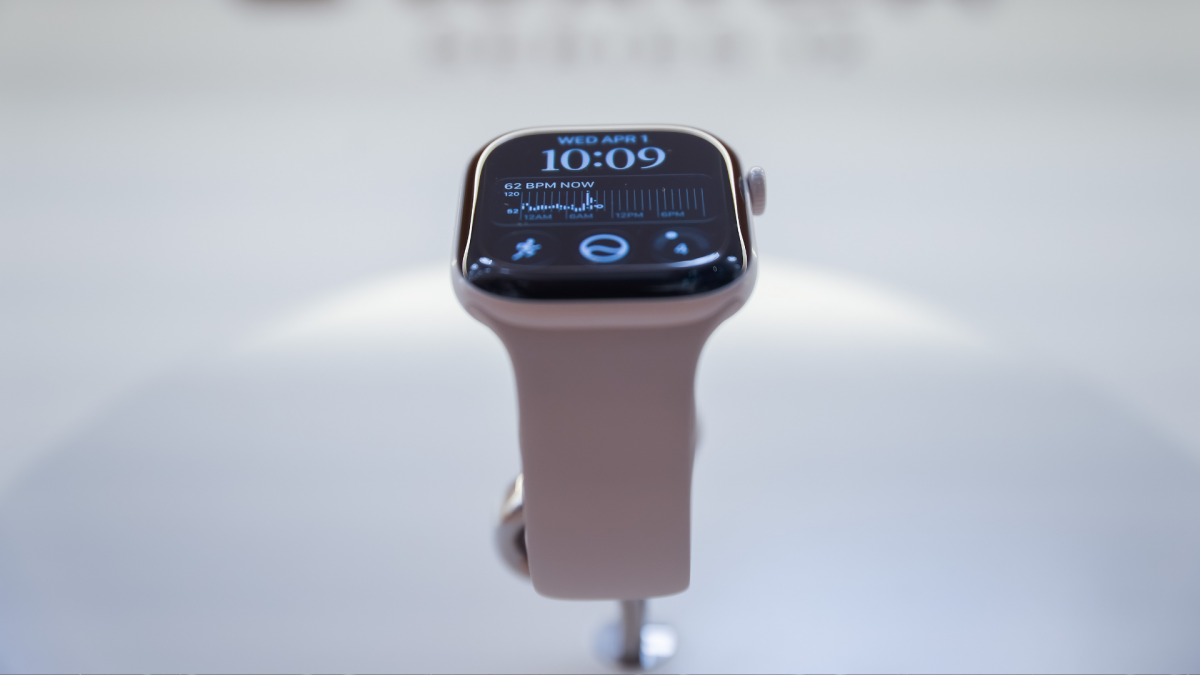
One of the big features Apple announced alongside the new Apple Watches is Siri AI - now available on your wrist. You need to join a waitlist to try Apple’s new and improved chatbot, and once through the waitlist, putting the new on-wrist Siri through its paces reveals an experience that does not yet live up to Apple’s promises.
What Devices Support Siri AI
Since Siri AI requires Apple Intelligence, you’ll need a device that supports it. Those include iPhones 15 Pro and newer, and an Apple Watch that is Series 9 or newer. If you want to use Siri AI on the Apple Watch, you need both a supported watch and a supported phone - a new watch and old phone won’t do the trick.
With a phone and watch both on iOS 27 (the iOS 27.2 developer beta on the phone; watchOS 27.0 on the Apple Watch Series 12), Siri AI is enabled in the phone’s Settings app, which puts you on a waiting list. A few days later, a notification confirms you’re in.
Siri AI on the Apple Watch Is Occasionally Useful, but Mostly Disappointing
Once upgraded to Siri AI on the watch, asking it plenty of questions reveals it struggling to answer many of them. The first test was asking where to find the nearest yoga studio; it responded with a list of yoga studios, none of them particularly close. After rewording the question a few times, it finally listed one about a mile away.
This is one of those examples where using AI is less efficient than a Google search - or even plain old regular Siri: when asked this same question of the old Siri model the previous week, it quickly found the closest studio.
With the phone in another room, the next step was to try some of the questions that Apple provides as examples on the WatchOS 27 page. Here’s how that went.
“What’s a good warm-up for deadlifts?” Siri gave paragraphs of text about the purpose of warmups in general. When tapping “Show More,” the result was a trip to the bottom of a long bulleted list of exercises.
“Read my upcoming events.” Siri needed a good five seconds to think about this one, but then correctly rattled off the next few calendar appointments.
“Set a new move ring goal.” Starting by asking what the current Move ring goal was, Siri could not answer. After blindly setting a new goal and later checking the Fitness app, it had updated - sort of. When asking for a goal of burning 350 calories, it gave a goal of 350. When asking for a goal of 325, Siri responded that it had changed the goal to 325, but the Fitness app showed the goal had been set to 320 calories.
Siri AI Sometimes Performed Well on the Apple Watch, but Seemed to Do Better on iPhone
Testing continued with a few requests that other Apple Watch users have reported give the chatbot some trouble. Setting a timer perhaps functions buggy for some users, but it worked quickly - “Siri, set a timer for five minutes” did exactly that, with only a few seconds of waiting. Likewise, “Siri, what’s the weather for today?” brought up the weather forecast instantly.
One of the purported new features of Siri AI is its ability to search your emails and messages for information that is relevant to a conversation you’re having with it. On the Apple Watch, this doesn’t work as well as expected.
First, asking Siri what a family member had recently asked to be bought - she is constantly sending texts asking for things - Siri responded that she had sent a wish list of LEGO sets on Sept. 12. This was true. But it wasn’t until specifying, “wasn’t there a makeup kit?” that Siri was also able to find that request, which was from Sept. 13. Meanwhile, the iPhone version of Siri AI was able to find the wishlist and makeup kit requests and report on them in the same initial response, without the additional prompting.
In another test of its search capabilities, asking who had been sent “Ramona’s dad’s phone number” turned up the text message, but the Watch version was only able to provide the phone number of the person it had been sent to. Siri AI on the phone, on the other hand, was able to figure out that the person requesting the number had introduced themselves by name earlier in that conversation, and it identified exactly who that person was - even though the name had not been entered into contacts.
Where Siri AI Struggles on the Apple Watch
Still, plenty of requests don’t work even that well, or don’t work at all.
The watch’s Siri app routinely crashes, taking the user back to the home screen. Sometimes Siri’s voice breaks up, and it interrupts itself to start its message over again. Sometimes Siri “thinks” for a long time. Many requests take five to 10 seconds, during which time grabbing the phone and looking up the answer directly would be faster.
Whenever Siri is stumped, it searches the web and gives a sea of unhelpful text. For example, trying to see if Siri could explain a mysterious icon on the watch screen - asking “Why is this icon gray?” in a variety of phrasings to clarify it meant one visible right now - instead of offering anything useful, or explaining that it can’t see the watch screen, it read some text from the Internet about what gray icons mean, in general, as a concept.
Another time, asking it to resume playing a podcast, instead of starting up the usual podcast app, it reported that Episode 550 of My Favorite Murder had just come out. The user has never listened to My Favorite Murder, and episode 550 was - upon checking - the third-most-recent episode, not the one that had just come out. The iPhone’s version of Siri AI, on the other hand, started the podcast app without issue.
At least one thing worked better on the watch: both versions of Siri AI said they had no information on sleep data, but the watch version was at least able to report what time the user had gone to bed and what time they had woken up.
The Conversations App Also Fell Short
The promised Conversations app likewise did not work as expected. When you press the digital crown on the watch, a mini app picker pops up with Siri in the center, surrounded by a few of your most recent apps. If you scroll down, you get the full list (or grid) as before. Tapping that center button is supposed to show you a list of recent conversations, but it kept showing “No conversations.” Later, exactly one conversation showed up there: the one about what a gray icon meant. That was the only question in that conversation, even though Siri had been in use all day.
Still a Work in Progress
The idea of the new Siri AI is appealing, and being able to ask follow-up questions is useful, especially with the ability to interrupt the chatbot to clarify questions. (“Give me two specific warm-up exercises I can do before snatches” got it to stop lecturing about warm-ups in general.)
But the long waits for answers, the frequent crashes, and the bot’s inability to access data that is right there on the device are frustrating. Whether the next update addresses these issues remains to be seen.